 English
Documentation
Quick start
Here is a "quick start" guide to get the image up on your screen within 10 minutes.
1. Log in to your Display account
If you don't have an account, you need to register your account first.
Log in to display.digimaker.com using your email address and the confirmation code sent to your email. Alternatively, you can log in directly using your Google account.
2. Create content
2.1 Create a view
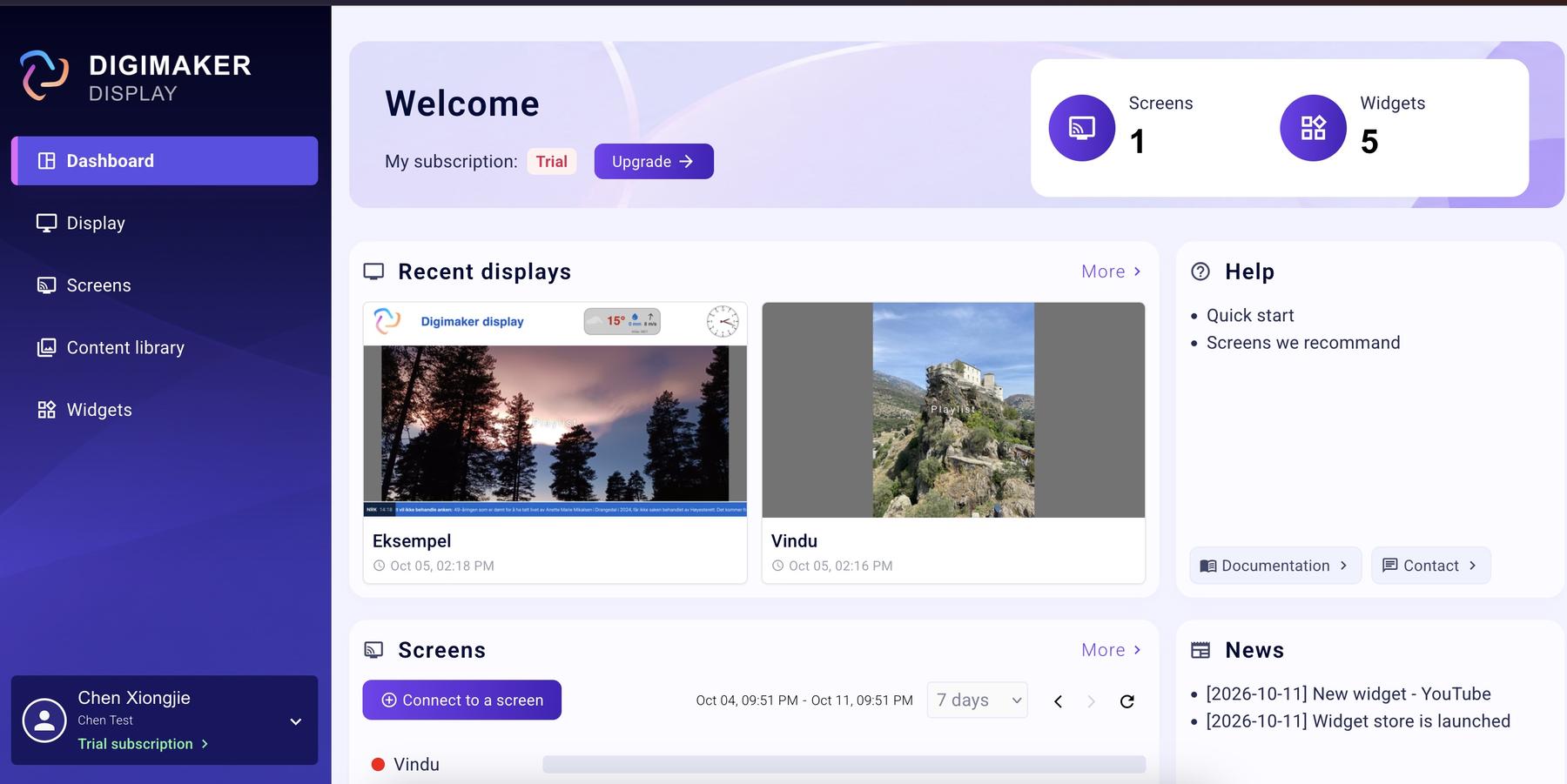
Click the Display menu -> Click New display.
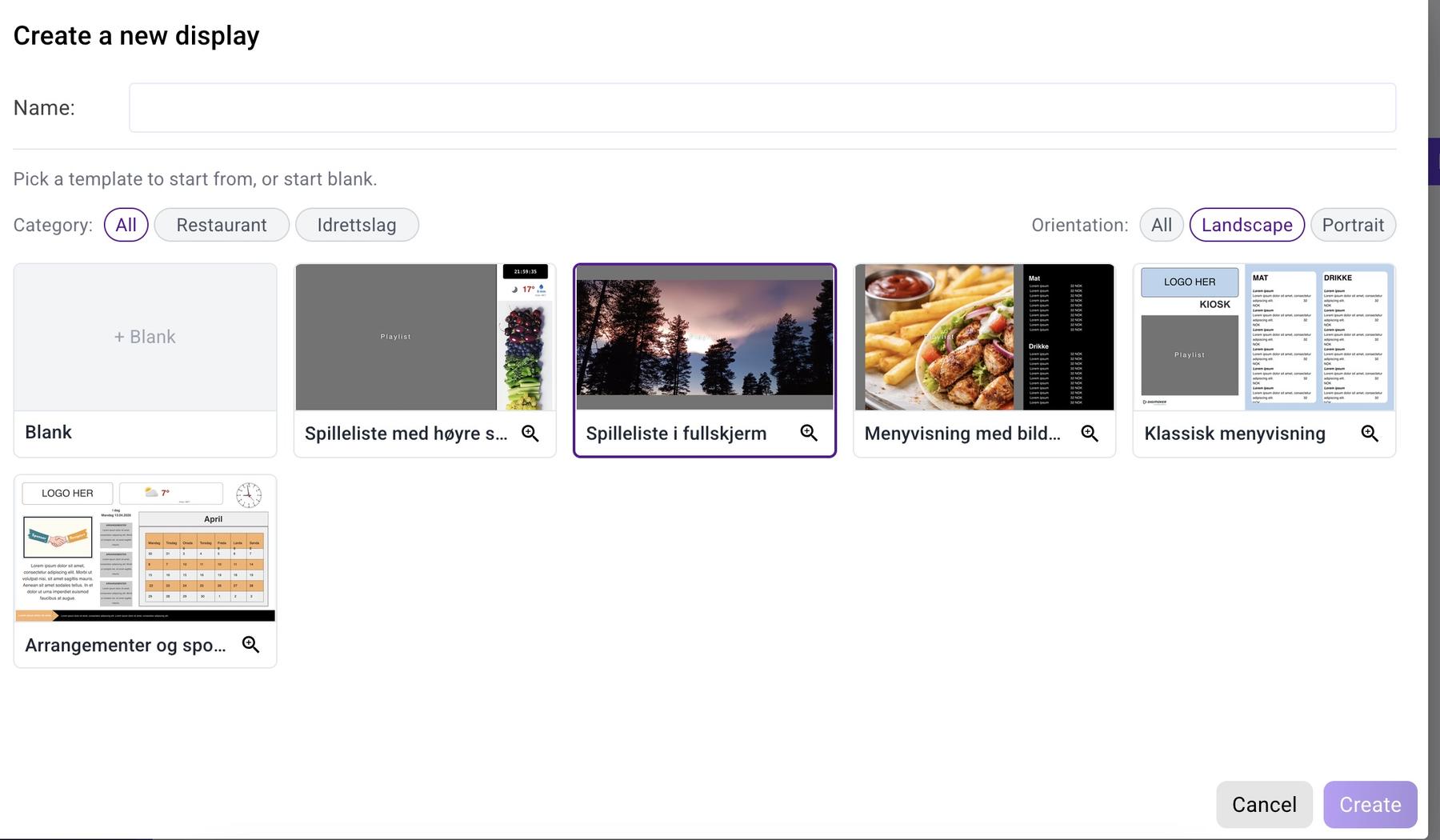
Choose a template. Use the "Full-screen playlist" template if you want to create a slideshow with multiple rotating images.
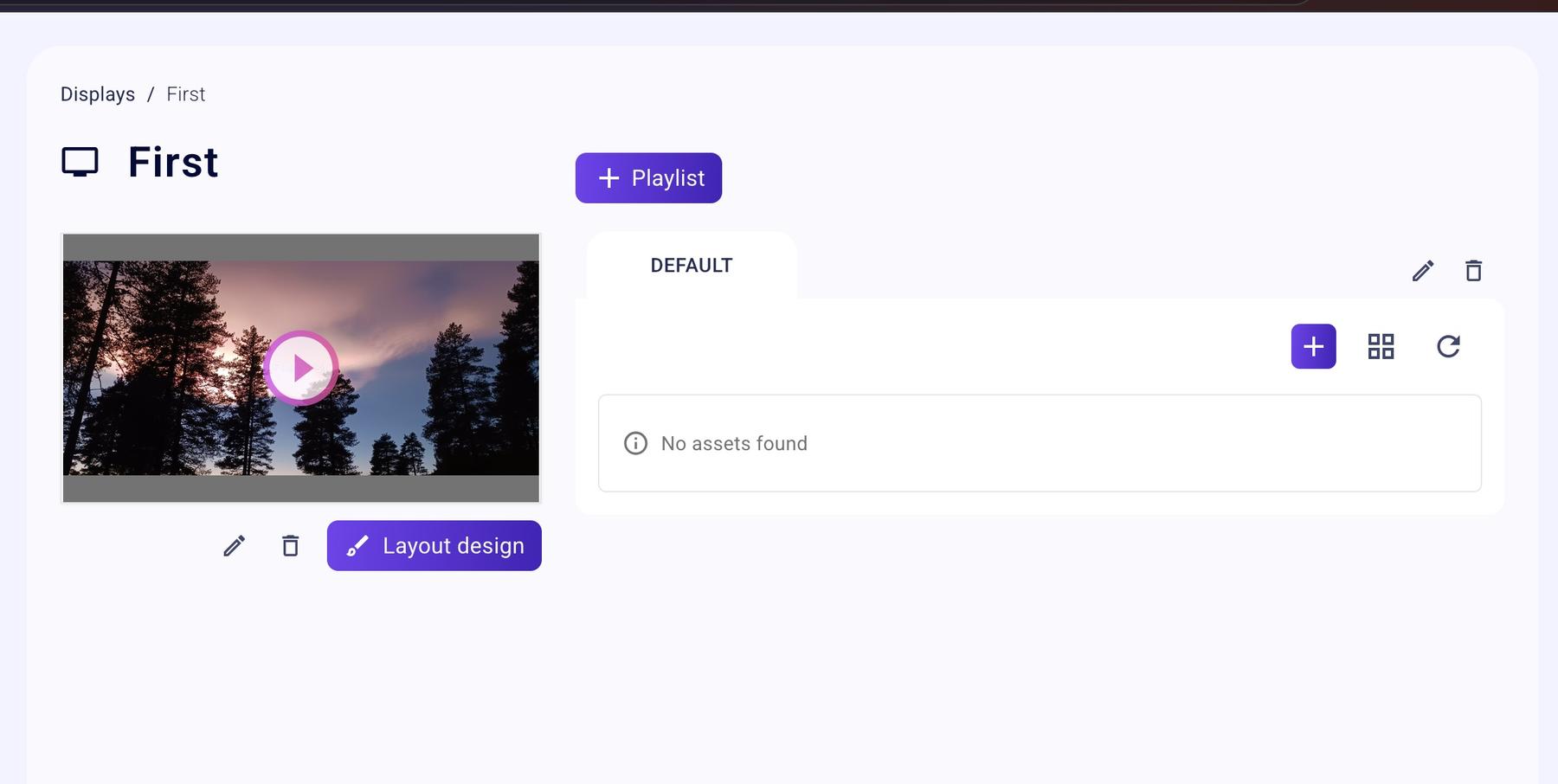
To customize the design, you can click on "Layout" and configure the view; this gives you greater flexibility in the layout, allowing you, for example, to place the clock, weather, and bus information in the right-hand area.
2.2 Add an image to the playlist
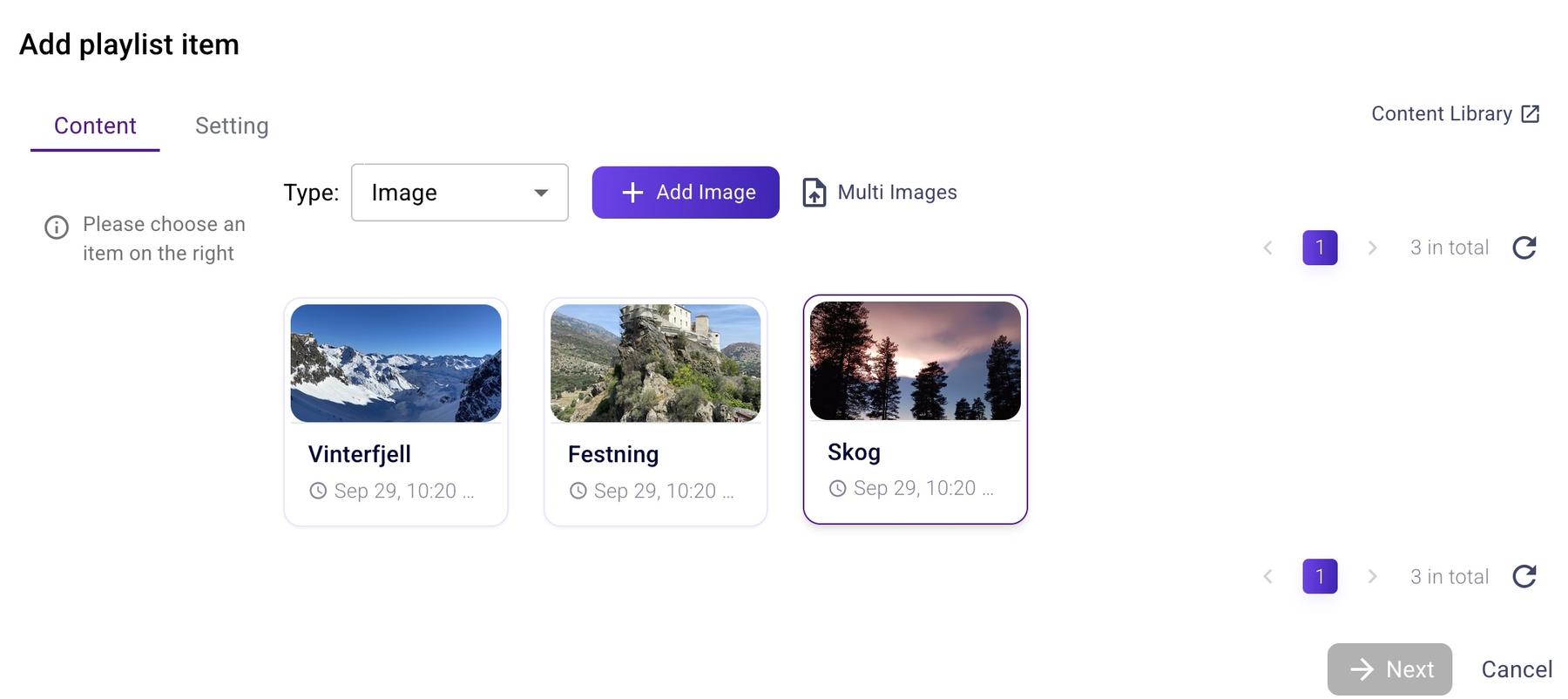
Click the plus sign (Add item) to add an item to the playlist. In the window that appears, you can select an image from the existing media library or upload a new one.
3. Prepare screens
For choosing a screen, you can click here .
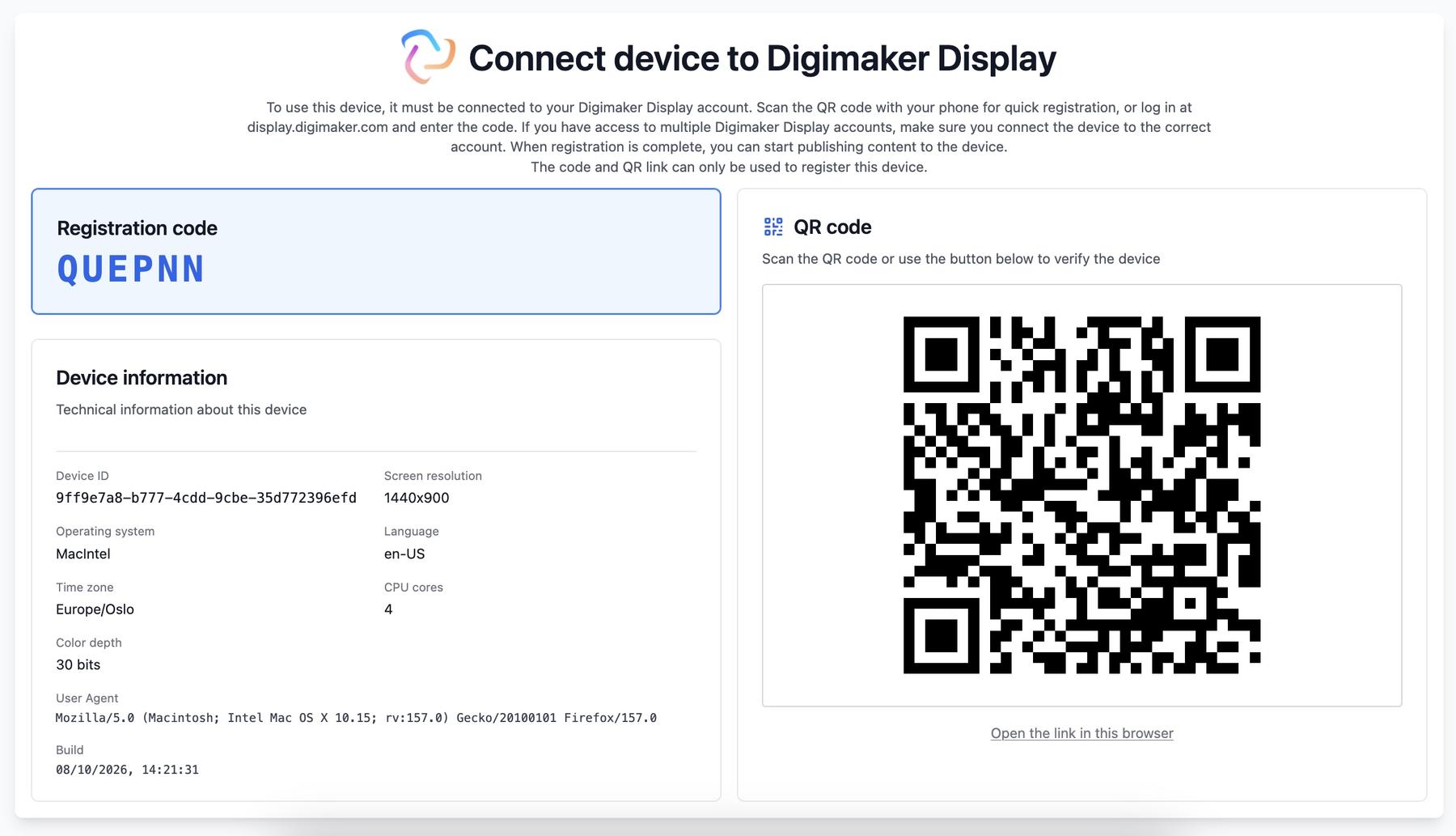
On a smart TV that supports Google TV, go to the Google TV store and install the Digimaker Display app. Launch the app, and you will see something like this:
4. Connect the screen to a display.
Confirm the device by accepting the QR code or entering the registration code manually.
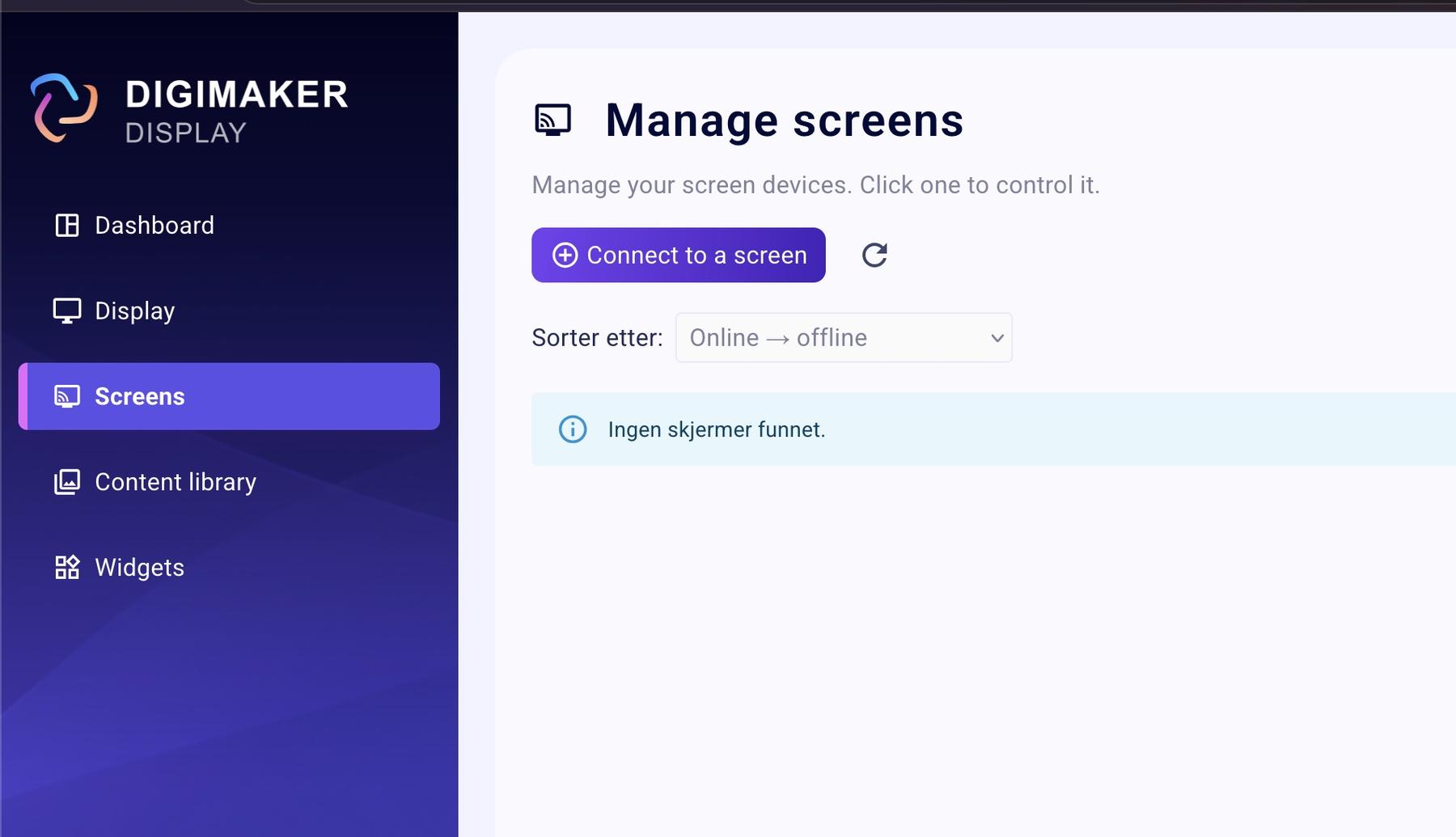
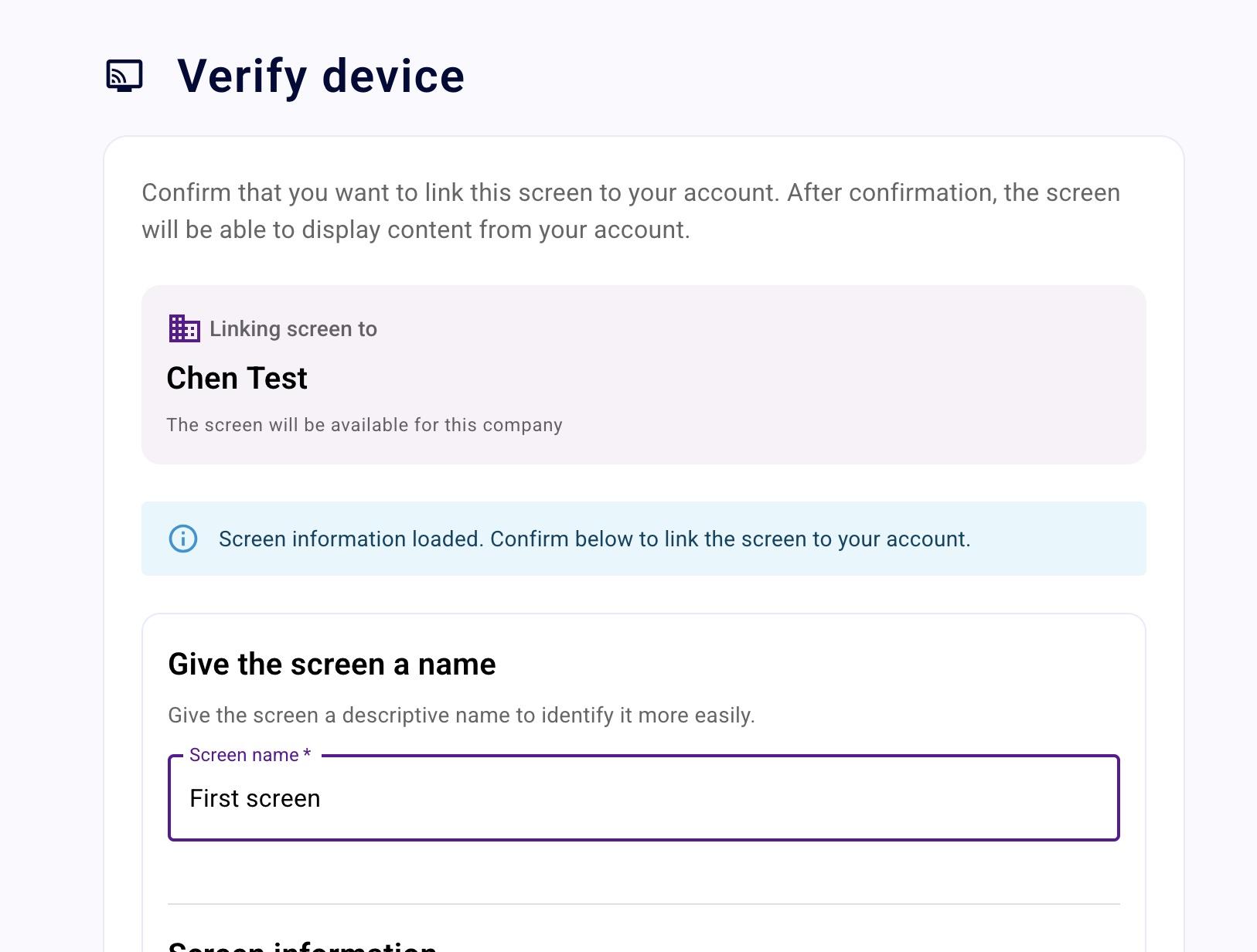
A screen can be linked to only one presentation, but a presentation can be linked to many screens.
You should see the image on your screen now!